FAQs: General
Why do agents sometimes appear online when they log out of Genesys Cloud?
Any third party applications that implement a user based authorization grant; for example, Platform API Client Authorization, and create notification channel subscriptions; for example, Notifications, then agent presence can be affected and causes the agent to appear as online as long as those channels remain connected.
How can I avoid a Session Expired message?
To avoid being forced to reauthenticate yourself at an inconvenient time due to an expired session, Genesys recommends the following:
- Log in when you begin your shift.
- Log out at the end of the day. For more information, see How do I log out of Genesys Cloud?.
What are the Genesys Cloud limitations?
Limits define thresholds for specific areas of the Genesys Cloud API. These guardrails help to safeguard Genesys services from abusive and unexpected traffic patterns, encourage efficient use of billable resources, and protect customers from unexpected usage.
Genesys defines limitations in the Developer Center. For more information about limitations and limits that are specific to a feature, see Limits in the Developer Center. For information about Genesys Cloud system requirements, see Genesys Cloud system requirements.
Can I offload data into an external system and return it into Genesys Cloud later?
No. After data is moved out of Genesys Cloud, it cannot be returned and accessed via the Genesys Cloud UI.
How do I submit an enhancement request?
If you want to make an enhancement request for Genesys Cloud, Genesys encourages you to register your request through the Product Ideas Lab. To Access the Product Ideas Lab and add your idea, follow these steps:
- Sign in to Genesys Orchestrators. Note: Some Genesys Orchestrators resources are available to the public; others, like the Product Ideas Lab, are only available to authenticated users. For more information, see How do I access Genesys Orchestrators?
- Click Home.
- On the Product Ideas Lab card, click Browse and Submit Ideas.
- From the Product Ideas Lab page, click Add a Product Idea.
You can also view and vote for existing ideas.
Why do multiple concurrent Genesys Cloud logins cause problems?
Genesys Cloud does not support multiple concurrent logins to the same account. Genesys Cloud considers the following scenarios as multiple concurrent logins:
- The same account logs in to web app on multiple tabs or browsers.
- The same account logs in to the desktop app and in the web app.
- The same account logs in on different computers at the same time.
- The same account logs in to an embedded client and the desktop, web, or mobile apps at the same time.Note: If configured correctly, agents can use the Genesys Cloud desktop or browser client as the primary client while still using the embedded client concurrently. For more information, see Disable WebRTC audio and alerting notifications.
Multiple concurrent logins can cause these and other problems:
- Unsuccessful phone interactions
- Missed notifications
- Unrefreshed views
- Unreliably updated statistics in dashboards
- Other inconsistent behavior
Issues arise partly because each client has a limited number of notification channels for these events. More than one concurrent login can cause a notification channel to close. For more information about notification channels, see Use the notification service in the Developer Center.
Because you may not see these issues, Genesys Cloud notifies you if you lose your connection. If you see this notification, close any other instances of Genesys Cloud and refresh the app.
- You can log in to either the desktop or web app.
- In addition to either the desktop or web app, you can log in to the mobile apps at the same time. However, this support excludes concurrent logins between the embedded client and the mobile Communicate app, unless you disable webRTC in the embedded client.
- With persistent connection is enabled for your WebRTC phone, if you log in to either the desktop or web app and a mobile app, and place or answer a call with either the web or desktop app, the WebRTC connection remains open. Genesys Cloud routes any future calls directly through the open WebRTC connection instead of to devices; in other words, the mobile app does not receive notifications of the incoming call. For more information, see Use the persistent connection feature with a Genesys Cloud WebRTC phone.
Where do I find a list of features included in Genesys Cloud subscription packages?
For Genesys Cloud feature subscription package information, see the Genesys Cloud feature matrix and Overview of Genesys Cloud CX. For more information about licensing, see About licenses.
Why don’t my credentials work when I log back in to Genesys Cloud?
If you have difficulty logging in to Genesys Cloud, you may see this message:
There was problem logging you in. Please check your email address and password and try again.
After six unsuccessful consecutive login attempts, Genesys Cloud temporarily locks your account. You can try to log in again after five minutes.
Reasons for unsuccessful logins:
- You typed your email address and/or password incorrectly.
- If your administrator set a password expiration policy, your password may have expired.
Solutions:
- Reset your password. See Set your password in Log in for the first time.
- Contact your administrator to reset your credentials.
Why do I need to re-enter my Genesys Cloud credentials?
Genesys Cloud features benefit from the use of various tokens with varying lifespans. When you access any Genesys Cloud feature with an expired token, you must re-authenticate.
Users in HIPAA organizations are logged out of Genesys Cloud when their browsing session expires. Users are directed to the Genesys Cloud login page and must re-enter their credentials. If users are on a call when the browsing session expires, the call is not interrupted. When the call completes, users are directed to the Genesys Cloud login page and must re-enter their credentials.
Users in non-HIPAA organizations are automatically re-authenticated when their browsing session expires. The re-authentication process causes Genesys Cloud to reload. Users are returned to the page they were on when the browsing session expired. If users are on a call when the browsing session expires, the call is not interrupted. Users can choose to re-authenticate automatically after the call ends.
An agent ended the interaction, but the disconnect reason says end-user. Why?
If the agent ended the interaction from a headset instead of the Genesys Cloud user interface, then the disconnect reason can appear as “end-user” because the system interprets the disconnect request as coming from an outside source.
How can I enable voicemail for users?
To receive voicemail, a user must have the Voicemail > Voicemail > Receive permission enabled. This permission is assigned to the Communicate – User role by default. If a user is assigned the Communicate – User role, the voicemail option should appear. If the voicemail option does not appear, see Products, roles, and permissions list for instructions on how to add the voicemail permission. You can also add the Voicemail > Voicemail >Receive permission to other roles.
To view your voicemails, see Access your voicemail.
How can I check for outages, availability, and the system status of Genesys Cloud?
Click the link below for Genesys Cloud’s operational, system availability, incident, and outage information. Use the Subscribe to Updates button to receive status updates through email, SMS notifications, or RSS or Atom feeds.
How do I log out of Genesys Cloud?
From the sidebar, click your profile picture in Genesys Cloud to access user settings, and then click Logout.
How can I check for the newest version of the desktop app?
The Genesys Cloud desktop app notifies you when a new version is available to download. However, you can check to see if any new updates are available in the desktop app menu. To check for updates, on the menu bar, click Genesys Cloud and then Check For Updates…
You can also check the Windows desktop app release notes and Mac desktop release notes for the newest version and the improvements and fixes included in that version.
Can Genesys Cloud connect to another PBX?
Genesys Cloud can connect to any PBX that supports SIP. However, Genesys Cloud cannot currently share data, such as status or prior input, with these PBXs.
How can I report an issue with Genesys Cloud?
Contact your administrator about a problem in Genesys Cloud
- From any product page, expand the Help menu and click Contact Help Center.
- Type a description of your problem and review the results that appear.
- If you still need help, click Contact Help Center.
Click the image to enlarge.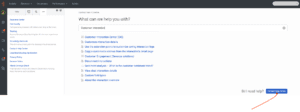
- Provide the appropriate details and click Submit.
Tell us about a problem in Genesys Cloud
To contact Genesys Cloud Customer Care, you must be a . Become a Designated Contact by first reviewing the Customer Areas of Responsibility. Then go to the Customer Care log in page and select Get Started to request a My Support account and get access to our Genesys support tools. Allow 48 business hours to receive your credentials. For more information about Genesys Cloud Customer Care, see About Genesys Cloud Customer Care.
What if the Resource Center does not display correctly?
If the Resource Center’s navigation or features do not display correctly, clear your web browser’s cache and reload the page. Clearing the cache allows the page to reset and display correctly. If the page still does not load correctly, please fill out the feedback located at the bottom of each page.
Why do I see articles on Genesys Cloud features that I don’t have?
There can be a few reasons why the Resource Center mentions features that you don’t see:
- You don’t have the user permissions. Genesys Cloud features are role-based, meaning that an administrator must assign you a certain role before you can access certain features. For more about permissions, see About People and Permissions and Products, roles, and permissions list.
- You don’t have the license. Licenses for Collaborate, Communicate, and Genesys Cloud CX 1, 2, and 3 all provide different features. The features available to you depend on what has been purchased for your organization.
- The feature is not released yet. Genesys Cloud adds new features and enhancements every week. In anticipation of updates, the Resource Center can mention features that Genesys Cloud does not have yet but will have very soon. For more information, see Features coming soon and Continuous delivery model.
How do I select my region?
When you log in to the browser app, desktop app, or mobile app, you are prompted to select the region where your organization was created, for example, Americas (US East), Americas (US East 2), Americas (US West), Americas (Canada), Americas (São Paulo), Asia Pacific (Mumbai), Asia Pacific (Seoul), Asia Pacific (Sydney), Asia Pacific (Tokyo), EMEA (Dublin), EMEA (Frankfurt), or EMEA (London). If you are already logged in, log out and log back in with the region selected.
Whether you are in the office, at home, or traveling, your access to Genesys Cloud is routed to the URL corresponding to the location of the Amazon data center for your region.
If you are unsure of your region, contact your Genesys Cloud administrator. Alternatively, try these work-arounds.
- First time log in: Access the Genesys Cloud login URL for each region. Log in will be successful only with the URL corresponding to your organization’s region.
- Currently logged in: (Web app only) The web app URL corresponds to your organization’s region.
Can I opt out of a Genesys Cloud update?
No. Genesys Cloud strives to provide a consistent and continuous experience for all users, so we do not maintain multiple versions. All users always have the latest version. For more information, see Continuous delivery model.