FAQs: BYOC Premises
What are the differences between locations, geolocations, and sites in Genesys Cloud?
Genesys Cloud includes three independent concepts that people often call locations:
A location is a specific, physical place with an address. An admin configures locations. Locations appear in the Location section of your profile.
A geolocation is a geographic area that Genesys Cloud determines by IP address. An admin can enable or disable geolocation for an organization. Your geolocation appears near your name and photo on your profile page, on your contact card, at the top of a chat window, and in Genesys Cloud search results for your organization.
- A site is a container for phone and BYOC Premises Edge configuration information and must have a designated location. While a site can have the same name as a location, the two are independent concepts. A telephony admin configures sites.
Can I use BYOC Premises with Genesys Cloud Voice?
Yes. You can use BYOC Premises with Genesys Cloud Voice. For more information, see About hybrid media.
What is the pricing for BYOC Premises?
When you put a BYOC Premises Edge into an In Service state, you will begin incurring the monthly hardware usage charge that is specified in your Genesys Cloud contract. Fore more information, see BYOC Premises Edge hardware usage charge.
Furthermore, you must purchase and maintain a sufficient quantity of BYOC Premises Edge devices to handle your expected concurrent call capacity. See Concurrent call capacity for BYOC Premises Edge models. Contact your sales representative for more information.
Can I create multiple BYOC Premises trunks for my organization
Yes. You can create and configure multiple BYOC premises-based trunks within a single organization. These trunks can connect to any variety of third-party carriers or devices.
How do I create a BYOC Premises trunk?
You create a BYOC Premises trunk under the Telephony Admin UI in Genesys Cloud. For more information, see Create a BYOC Premises trunk.
What can a BYOC Premises trunk connect to?
A BYOC Premises trunk can connect to any SIP-compliant carrier or device that can be reached from your Edge device. This could be an IP-PBX or SIP carrier device on the same LAN/WAN as the Edge, or a cloud-based system reachable over the public Internet.
What is a BYOC Premises trunk?
A BYOC Premises trunk is a SIP trunk that you configure between your premises-based Edge devices and a third-party system, either on your own network or over the public Internet.
Is BYOC Premises the right solution for me?
Using BYOC Premises for your Genesys Cloud telephony connection may be right for you if any of the following describe your telephony goals:
- You want to keep media and telephony local because you have offices in locations where the cloud infrastructure is not sufficient for cloud-based telephony.
- You are part of a multinational company where cross-region latency would be a concern.
- You want to leverage your own carrier relationships, particularly premises-based connections.
- You want to integrate with a third-party device such as an IP-PBX.
Can I use BYOC Cloud with BYOC Premises?
Yes. To do so, you’ll use the hybrid telephony connection features. For more information, see About hybrid media.
How can I determine which BYOC Premises – Genesys Hardware Solution Edge is powering my BYOC Premises configuration?
There are five Edge versions that you can be using in a BYOC Premises – Genesys Hardware Solution organization:
- Edge Standard v1
- Edge Standard v2
- Edge Standard v3
- Edge Mini
- Edge Micro
The v1 is a custom server built by Genesys. The v2 and v3 are built on Hewlett Packard system and customized to Genesys Cloud specifications. The Mini and Micro are built on an Advantech system and customized to Genesys Cloud specifications. For more information, see About BYOC Premises – Genesys Hardware Solution.
You can identify the version of an Edge by the serial number.
To find the serial number:
- Click Admin.
- Under Telephony, click Edges.
- Click Menu > Digital and Telephony > Telephony > Edges.
- Select the check box for the row that contains the Edge you want identify.
- Click Edit Edge on the toolbar.
- On the General tab, locate the information panel, and find the Serial Number.
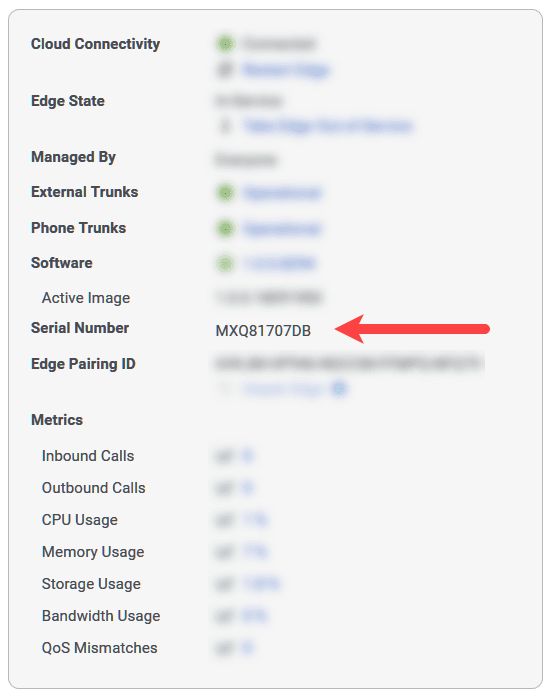
Edge standard
If the serial number begins with the letters CCP, then it is a Edge Standard v1. If the serial number begins with any other letters or numbers, then it is either an Edge Standard v2 or an Edge Standard v3.
To determine whether it is a Standard v2 or a Standard v3:
- Take note of the serial number.
- Access the Hewlett Packard Enterprise Support Services Central site.
- Enter the serial number when prompted.
If the result is HPE DL60 Gen9, then you have a Edge Standard v2.
If the result is HPE DL360 Gen10, then you have a Edge Standard v3.
Edge Mini or an Edge Micro
If the serial number begins with the letters KSA or ACG, then it is either an Edge Mini or an Edge Micro. Unfortunately, you can’t actually differentiate the Edge Mini and the Edge Micro from the serial number. To tell them apart, you have to have physical access to the device.
The Edge Mini and the Edge Micro are physically identical in that they both use the same chassis, so telling them apart depends on when they were manufactured.
In some cases, you can tell them apart by the model number found on the sticker on the bottom of the chassis.
- If the model number is ARK-1550-S9A1E, then you have an Edge Mini.
- If the model number is ARK-1550-S6A1E, then you have an Edge Micro.
If the model numbers do not correspond to this scheme, the only way to distinguish between them is by the size of the hard disk. The Edge Micro has a 256 GB hard disk while the Edge Mini has a 512 GB hard disk. You can slide out the externally removable solid-state drive to examine them.
Genesys recommends labeling the Mini and Micro Edges when you receive them.