- Under Conditions, click inside the Type box, and then select Data Action.
- To display a list of available data actions, click the Data Action box, and then select a data action from the list.
Next, you can enter the data action conditions for the selected data action.
Notes:
- If no existing data actions are relevant, create a new data action. See Create a custom action for integrations. To create a data action, you must know the data action’s input and output contracts, endpoint, and other parameters. Contracts define the format of data passed to the data action or returned by it. The endpoint is the address of the API call. For more information, see About integrations, About the Genesys Cloud data actions integration, and About custom actions for integrations.
- If you configure data actions for the campaign, this process can impact (slow down) the message sending speed. The efficiency of data actions is important. Data actions that make an API call or conduct a database lookup that takes a long time to complete can slow down message sending speed.
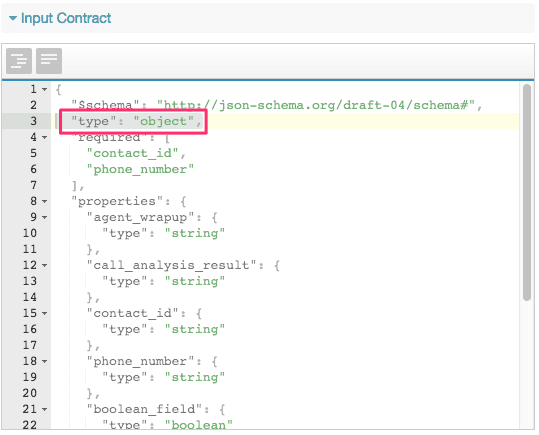
- If the system displays ‘The input contract on the data action must be of type object”, then the selected data action is not compatible with outbound. A compatible contract resembles this schema:

- To view the input contract for a data action, select Actions from the Admin menu. To open a data action, select its name. Then, select the Input Contract tab. The data in the schema must define the values as belonging to an object. See Create a custom action for integrations.
- To correlate campaign data with input values of the data action, use the controls below Map of Outbound Values to Data Action Inputs. This mapping tells the rule what information to pass to the data action before the data action runs.
- In the Outbound Value list, select an item of information to pass to the data action. Your selection of outbound values is based on the contact list selected.
- In the Data Action Input list, select which input value of the data action receives the outbound value. For example, you can map a phone number from the campaign to a data action’s Cell value.

Tip: If the system displays a validation warning, then the data action is not configured as a HIPAA/Secure Data compliant data action. Reconfigure the data action and make it secure before you use the data action in outbound. To reconfigure the action, click
Admin. Under
Integrations, click
Actions. Click the data action name and then enable the
HIPAA/Secure Data box
.The inputs to a data action are based on its contracts. Contracts are JSON schema statements (specified when someone creates a data action) that define what data passes to a function or what the function returns.
- To map more outbound values to data action inputs, click the plus below the last configured row. Repeat this step until you map all inputs that the data action needs.
When the rule uses this association between outbound values and data action inputs, it passes to the data action any data it needs. For example, a data action can use a column from the contact list to retrieve information from a CRM.
- Control whether the rule action performs when the condition is met or not met.
In some situations, you may want to invert the condition so that the system performs its data action when the opposite of the condition is true. This inversion is accomplished by setting the Invert Condition switch to Yes. An inverted condition performs rule actions when the condition is not met.
Perform one of the following steps:
To perform a rule action when the condition is met, set Invert Condition = No. This setting is the default.
To perform a rule action when the condition is not met, set Invert Condition = Yes.
After you define the defined inputs to the data action, configure your rule to evaluate the information returned by the data action. Use the Output Evaluations section to set up expressions that evaluate any return value in the data action’s Output contract.
Select a return value from the Data Action Output box.
Select an operator from the Comparator box.
Currency evaluations
A data action condition can evaluate currency values, but only if the output result has two or fewer decimal places.
If a result has more than two decimal places, the rules cannot evaluate it.
Time evaluations
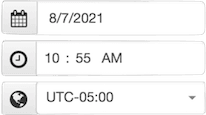
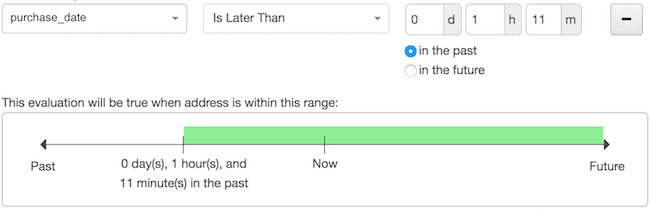
String, Boolean, and numeric comparators are intuitive. You can compare date strings to relative times or to specific times. Both types of time comparators provide “Is Earlier Than” and “Is Later Than” comparators. The difference is whether the value compares with an exact date and time, or is relative to the current time, in the past or the future. A specific time value is set by configuring:

But a relative time value is set by configuring a time offset:

In the Value box, type a value. This value compares with the value returned by the data action, and uses the selected comparator. For example, you can check to see if a postal code begins with the number 5:

Note: String comparisons are case-sensitive.
- (Optional) To invert the comparison operator, enable the invert comparator box. For example, if you invert the Begins With comparator, the evaluation resolves true if the value does not begin with the specified value.
- (Optional) Set When there is no value for the data action output field, this evaluation resolves to True. If the output contains no data, you can decide whether the expression returns True or False. False is the default.
- (Optional) To evaluate another output value, click Add. Repeat steps 1 through 7 to configure the new evaluation condition.
Note: Conditions join with the AND operator, so a call must meet all rule conditions for the overall rule to evaluate True.
- (Optional) If the data action returns no data, to control whether the condition evaluates True or False, click the Data Not Found Resolution switch. False is the default, which means that the condition returns False when the data action returns no data.
Note: If the data action returns no data, the Data Not Found Resolution overrides the Invert Condition setting.
- To use an action, follow the instructions in Configure rule actions.
Note: A digital rule data action execution times out after 20 seconds, which causes the record to wrap up with the code OUTBOUND-RULE-ERROR-SKIPPED. An ERROR level event log is also submitted with the code DATA_ACTION_EXECUTION_FAILED.